







How to Use VLOOKUP in Excel: Learn the Formula With PW Gyaan-E
 Gunika Shah8 Sept, 2026
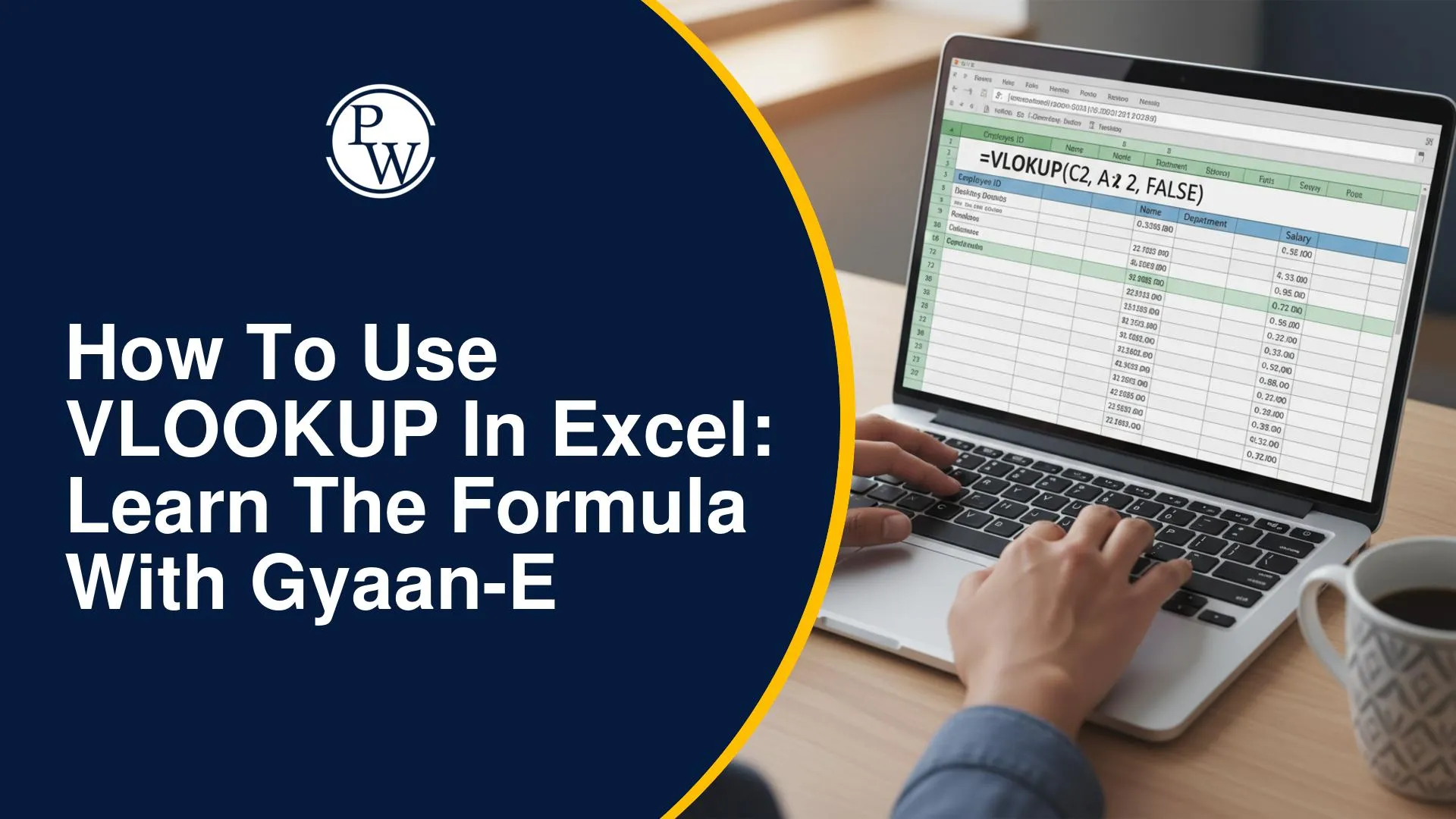
Finding one value in a long Excel table can take time when you search row by row. VLOOKUP makes this easier by searching for a value in the first column of a table and returning related information from another column. You can use it to find a product price, employee department, student marks, or other details stored in a spreadsheet.
Once you understand its four arguments, VLOOKUP becomes much easier to use. You can also build your wider spreadsheet knowledge through PW Gyaan-E AI & Tech Courses, where you can find courses for developing practical Excel, AI, and technology skills.
What Is VLOOKUP in Excel?
VLOOKUP is an Excel lookup function used to search vertically through a table. The value you want to find should be in the first column of the selected table, and Excel can then return information from another column in the same row.
For example, suppose you have this employee information:
|
Employee ID |
Employee Name |
Department |
|
E101 |
Rahul |
Sales |
|
E102 |
Meera |
Finance |
|
E103 |
Aman |
Marketing |
|
E104 |
Riya |
HR |
If you know the employee ID E103, VLOOKUP can search the first column and return Aman or Marketing, depending on the information you request.
What Is the VLOOKUP Formula in Excel?
The VLOOKUP syntax contains four arguments:
=VLOOKUP(lookup_value, table_array, col_index_num, [range_lookup])
Here is what each argument means:
|
Argument |
Meaning |
|
lookup_value |
The value you want Excel to find |
|
table_array |
The range containing the lookup table |
|
col_index_num |
The number of the column containing the result |
|
range_lookup |
Tells Excel whether you need an exact or approximate match |
Understanding what each argument does is more useful than simply memorising the formula.
How to Use VLOOKUP in Excel Step by Step
Suppose the employee table above is in cells A2:C5. You have entered employee ID E103 in cell E2 and want Excel to find the corresponding department.
Step 1: Select the Result Cell
Click the cell where you want the department name to appear.
Step 2: Enter the Lookup Value
Start the formula with:
=VLOOKUP(E2,
Here, E2 contains the employee ID you want Excel to find.
Step 3: Select the Table Range
Your employee data is stored in A2:C5, so add this range:
=VLOOKUP(E2,A2:C5,
Excel will search the first column of this selected range for the employee ID.
Step 4: Enter the Column Number
Within A2:C5:
-
Employee ID is column 1.
-
Employee Name is column 2.
-
Department is column 3.
Since you want the department, enter 3:
=VLOOKUP(E2,A2:C5,3,
Step 5: Choose the Match Type
You need the department for the exact employee ID, so enter FALSE:
=VLOOKUP(E2,A2:C5,3,FALSE)
Press Enter. Excel finds E103 and returns:
Marketing
Another VLOOKUP Example
Suppose you maintain this simple product list:
|
Product ID |
Product |
Price |
|
P101 |
Notebook |
₹80 |
|
P102 |
Pen Set |
₹120 |
|
P103 |
Calculator |
₹450 |
If P102 is entered in cell E2, you can retrieve its price using:
=VLOOKUP(E2,A2:C4,3,FALSE)
Excel searches the first column for P102 and returns the value from the third column: ₹120.
The same approach can be used with larger tables containing product codes, student roll numbers, employee IDs, or other unique identifiers.
What Is the Difference Between TRUE and FALSE in VLOOKUP?
The last VLOOKUP argument controls the type of match Excel uses.
-
FALSE asks Excel to find an exact match.
-
TRUE allows an approximate match.
If you are looking for a specific employee ID, product code, or roll number, you will generally need an exact match, so FALSE is commonly used.
Approximate matches require more attention to how the lookup table is arranged. If you are just starting with VLOOKUP, practising exact-match formulas first can make the function easier to understand.
How to Know Why VLOOKUP Is Not Working?
A VLOOKUP formula may return an error or an unexpected result if one of its arguments is incorrect. Before rewriting the entire formula, check the following:
-
Lookup value: Confirm that the value you are searching for actually appears in the table.
-
First column: The lookup value needs to be in the first column of the selected VLOOKUP table.
-
Table range: Make sure the range includes both the lookup column and the column containing the answer.
-
Column number: Count the column from the beginning of the selected table, not from the beginning of the worksheet.
-
Match type: Use FALSE when you require an exact match.
-
Data type: Check whether numbers or IDs have been stored differently, such as a number stored as text.
These checks can help you identify many common VLOOKUP problems without changing the underlying data.
VLOOKUP vs XLOOKUP: What Should You Know?
VLOOKUP uses a single table array and a column index number to determine where the result should come from. It also works from left to right, so the lookup value must be positioned appropriately within your selected table.
XLOOKUP separates the range being searched from the range containing the result. This allows it to return information even when the return column is on the other side of the lookup column.
Microsoft also shows that an XLOOKUP formula can replace a VLOOKUP formula. For example, its documentation compares XLOOKUP with the equivalent =VLOOKUP(F2, B2:D11,3, FALSE) formula.
However, XLOOKUP is not available in Excel 2016 and Excel 2019, so VLOOKUP can still be relevant when working with older versions of Excel.
How Can PW Gyaan-E Help You Improve Your Excel Skills?
Knowing how to use VLOOKUP is useful, but workplace spreadsheets can require many different formulas and functions. Building a stronger foundation can help you understand which formula to use instead of depending on memorised steps.
With PW Gyaan-E, you can work on these skills progressively:
-
Strengthen formula fundamentals: Understand how formulas, functions, ranges, and cell references work together.
-
Practise useful Excel functions: Become more comfortable applying formulas to different spreadsheet tasks.
-
Work confidently with data: Develop skills for finding, calculating, organising, and managing information.
-
Build broader tech knowledge: Check PW Gyaan-E AI & Tech Courses to find courses covering Excel, AI, and other practical technology skills.
You can also use PW Gyaan-E's Microsoft Excel Formulas: Mastery Course if you want focused practice with Excel formulas and spreadsheet functions.
VLOOKUP can save you from manually searching through large Excel tables whenever you need to match one value with related information. Start by understanding its four arguments, practise with exact matches using FALSE, and carefully check your table range and column number. Once you are comfortable with VLOOKUP, you can move on to other lookup functions such as XLOOKUP and gradually expand the types of spreadsheet tasks you can handle.
How to Use VLOOKUP in Excel FAQs
1. What is VLOOKUP used for in Excel?
2. What does FALSE mean in VLOOKUP?
3. Why does VLOOKUP show #N/A?
4. What is the difference between VLOOKUP and XLOOKUP?


Have questions about your prep?
Our experts can answer all your questions
 Live & recorded classes available at easeDashboard for progress trackingLakhs of practice questions